SocketCAN Basic Debugging Methods
KH-UCANFD_Linux_SDK
We recommend using the KH-UCANFD_Linux_SDK driver package, which is specifically designed for KunHong CAN FD series hardware products. It provides deeply optimized Linux drivers and tools based on SocketCAN standards, fully utilizing device throughput capabilities while minimizing CPU overhead.
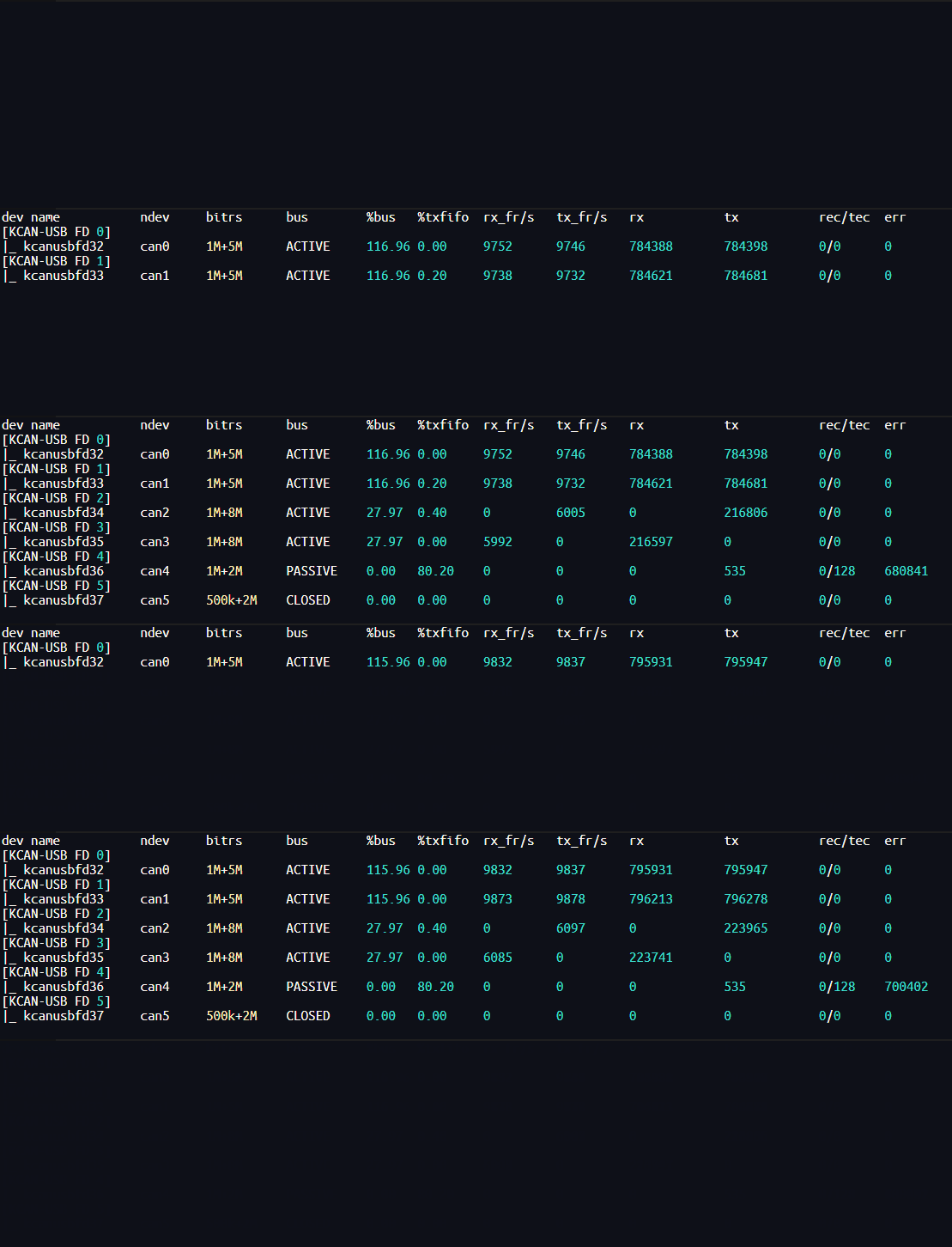
The SDK driver package provides a series of tools and libraries to help users get started quickly and develop, such as: multi-channel stress test scripts and kcan_monitor monitor.
Details link: https://gitee.com/ChengDu-KunHong/KH-UCANFD_Linux_SDK
Debugging Tips
The SDK link already provides detailed tutorials for getting started with SocketCAN.
Here we provide additional practical usage tips.
CAN FD
When using SocketCAN, mastering the following simple operations will help you debug CAN FD.
1. Enable CAN FD Mode
To enable FD mode in SocketCAN, configuration must be done before opening the channel. Once the channel is open, configuration cannot be performed.
# Configure can0 bit rate to 1M/5M and enable FD mode
sudo ip link set can0 down
sudo ip link set can0 type can bitrate 1000000 dbitrate 5000000 fd on
sudo ip link set can0 up
2. Send CAN Frames
# Send standard frame: ID=0x123, data=11223344
cansend can0 123#11223344

# Send CAN FD frame
cansend can0 123##111223344
3. Monitor CAN Frames
Running candump with the -x parameter displays frame types, which greatly helps with communication debugging.
# Display frame types
candump -x can0
More command options:
| Option | Description |
|---|---|
-t <type> | Timestamp format: • a - absolute time • d - relative time • z - delta time • A - absolute time with date |
-H | Read hardware timestamps instead of system timestamps |
-c | Increment color mode level |
-i | Binary output (may exceed 80 characters per line) |
-a | Enable additional ASCII output |
-S | Swap byte order in CAN data[] (marked with '`') |
-l | Log CAN frames to file (default -s 2) |
-f <fname> | Log CAN frames to specified file (default -s 2) |
-L | Use log file format on stdout |
-n <count> | Terminate after receiving specified number of CAN frames |
-r <size> | Set socket receive buffer size |
-D | Do not exit program if CAN device goes down |
-d | Monitor dropped CAN frames |
-e | Dump CAN error frames in readable format |
-8 | Display original DLC value in {} for classic CAN |
-x | Print extra message info (rx/tx brs esi) |
-T <msecs> | Terminate if no frames received within specified milliseconds |
TEST:
- Start candump following the commands above
- Use cansend to send standard CAN and CAN FD frames
- candump display as follows
Through testing, you can observe the differences between CAN 2.0 and CAN FD frames in candump +x display:
- CAN FD frames show data type as "B" for FD with BRS type, while CAN 2.0 frames do not
- CAN FD frame DLC (data length) displays as "[04]" because two-digit length is reserved, different from CAN 2.0 frame display.
kcan_monitor
kcan_monitor is a monitoring tool provided by KH-UCANFD_Linux_SDK that allows one-click viewing of key status for all CAN channels, eliminating the tedious process of querying individual channel status, greatly optimizing user experience during debugging.