Common Issue Troubleshooting Guide (FAQ)
Detailed Guides
01. Driver Loading Failure: Secure Boot Conflict
Phenomenon Description: When executing modprobe to load driver, system prompts:
modprobe: ERROR: could not insert 'kcan': Key was rejected by serviceRoot Cause: System has UEFI Secure Boot enabled. Since driver is not signed by current system's trusted key, kernel security policy rejects loading this driver.
Solution:
- Reboot computer and enter BIOS/UEFI settings interface
- Navigate to Security or Boot options tab
- Find Secure Boot option and set it to Disabled
- Save and exit, re-enter system to load driver
02. kcanfd_test.sh Packet Drop or Execution Failure
Phenomenon Description: When running automated test script, Failed message appears or data packet count does not match.
Cause A: Hardware Physical Link Not Closed Loop
Description: The test script uses self-transmission/reception mode.
Fix: Please ensure CAN channels are looped in pairs (e.g., CAN0 connected to CAN1, CAN2 connected to CAN3).
Note: Long-distance or high-frequency testing must have 120 Ω terminating resistors connected at both ends of link.
Cause B: Script Parameters Do Not Match Hardware Specifications
Description: Check if script instruction parameters are correct.
Fix: Modify test command according to actual channel count and bit rate requirements.
Example (Test 2 channels, arbitration phase 500 kbit/s, data phase 4 Mbit/s, send 500,000 packets):
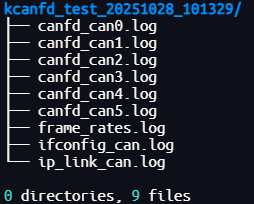
sudo kcanfd_test.sh -c 2 -b 500000 -d 4000000 -t 500000Tip: After testing is complete, you can view detailed logs in the kcanfd_test_[timestamp] folder in the current directory.
03. Driver "Disappears" After System Upgrade
Phenomenon Description: After Linux kernel update (e.g., upgrading from 6.5 to 6.8), driver becomes invalid or device cannot be found.
Root Cause: Linux kernel drivers are typically bound to specific kernel versions. After kernel upgrade, old version binary drivers cannot run directly.
Core Solution: Enable DKMS (Dynamic Kernel Module Support). After enabled, whenever system installs a new kernel, DKMS will automatically recompile and install driver in the background.
Operation Steps:
# 1. Install DKMS tool
sudo apt install dkms

# 2. Re-compile and inject DKMS hooks
sudo make clean
sudo make netdev
sudo make install_with_dkms
How to Verify?
Execute the following command. If output contains kunhong-linux-driver status as installed, it indicates successful configuration:
dkms status
04. Difficult Cases: One-Click Diagnostic Report
If the above solutions cannot resolve your issue, please run SDK's built-in diagnostic tool:
sudo kcanosdiag.shOutput Result: The script will generate a log similar to kcanosdiag-1.0.0-20251105.log.
Feedback Channel: Please send this log file to our technical support email so that we can quickly locate environment conflicts for you.
