can-utils
The can-utils toolset includes multiple practical CAN tools. Following is an introduction to typical usage of core tools.
Installing can-utils Tools
sudo apt install can-utilsCommon Debugging Tools
Frame Transmission: cansend
Used to send a single CAN frame. Format is cansend <interface_name> <frame_id>#<data_field>.
# Send standard frame: ID=0x123, data=11223344
cansend can0 123#11223344

# Send extended frame: ID=0x12345678, data=55667888
cansend can0 X12345678#55667888

# Send remote frame (requests data only, no data field, prefix with "R")
cansend can0 R123#

# Send CAN FD frame (requires interface support)
cansend can0 123##311223344556677889AABBCC

# Send once every 100ms, total of 10 times
cansend can0 -l 100 -n 10 123#11223344
In addition, cansend supports different DLC, error frames, and other frame types. For more help information:
cansend -hFrame Listening: candump
candump listens to CAN bus frames in real-time, supports output to screen or saving to files. Core parameters are used to filter IDs, set time format.
Basic Usage
# Listen to all CAN frames
candump can0

# Listen to multiple interfaces
candump can0 can1
Filtering Functions
# Listen only to specific ID
candump can0,123:7FF        # Listen to ID 0x123
candump can0,123:7FF,456:7FF,789:7FF  # Listen to multiple specific IDs

# Use mask to filter
candump can0,123:7F0        # Listen to ID 0x120-0x12F
candump can0,~123:7FF       # Listen to all IDs except 0x123
Output Format Control
# Color output
candump -c can0

# Display frame type
candump -x can0

# Precise time format control
candump -t a -H can0
Time Format Options:
-t a: Absolute time-t d: Delta time-t z: Zero time-t A: Absolute time with date-H: Use hardware timestamp instead of system timestamp-c: Increase color mode levels
Logging
# Record to file (record to candump-YYYYMMDDHHMMSS.log)
candump -l can0

# Specify log file
candump can0 > can_log.txt
More help information:
candump -hBus Load Monitoring: canbusload
Real-time refresh displays CAN bus load rate and frame rate.
Basic Usage
# Display can0 and can1 load rates and frame counts in FD mode at 1 Mbit/s/5 Mbit/s
canbusload can0@1000000,5000000 can1@1000000,5000000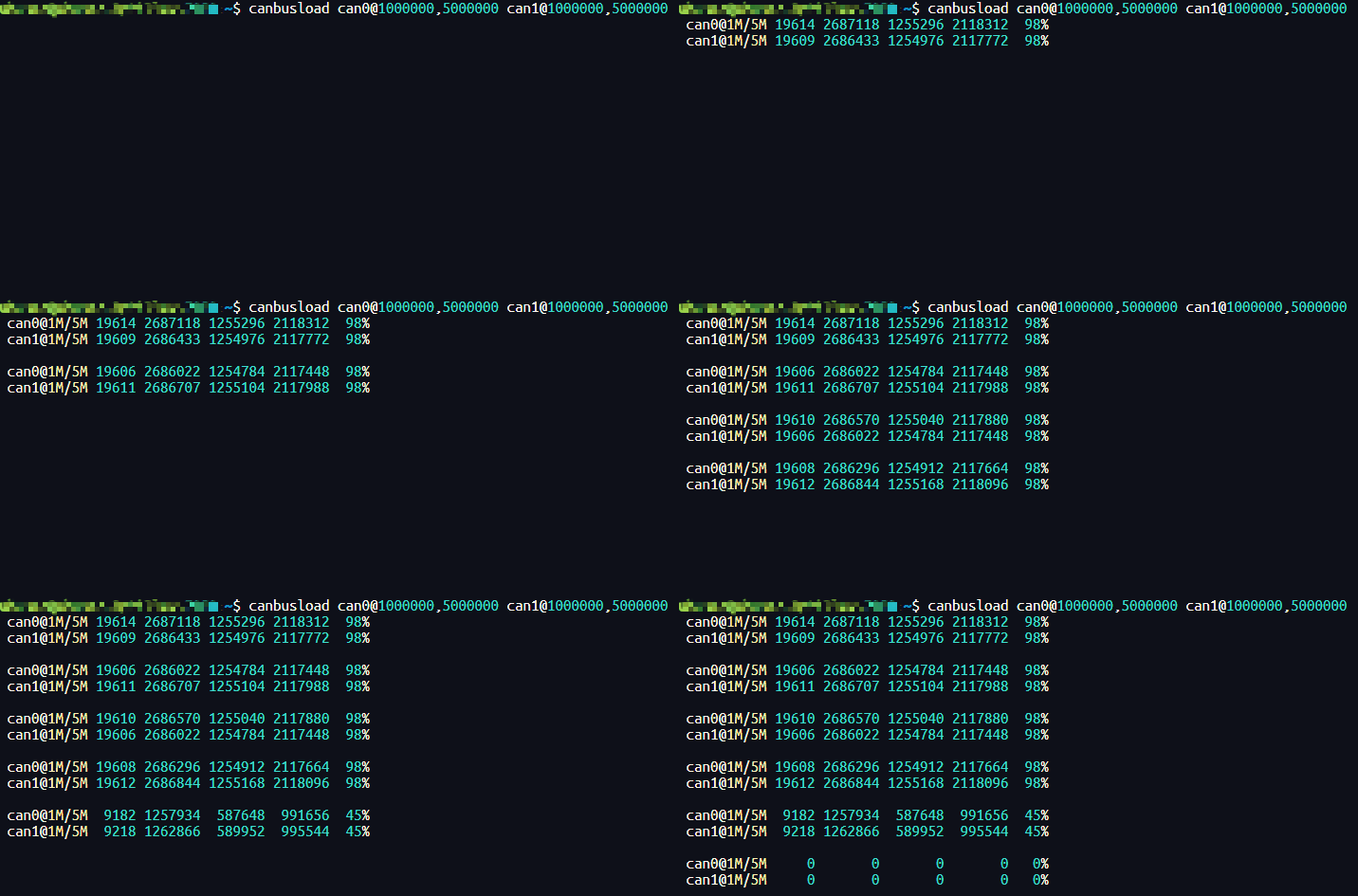
Advanced Usage
# Print time
canbusload -t can0@1000000,5000000

# Visual interface
canbusload -v can0@1000000,5000000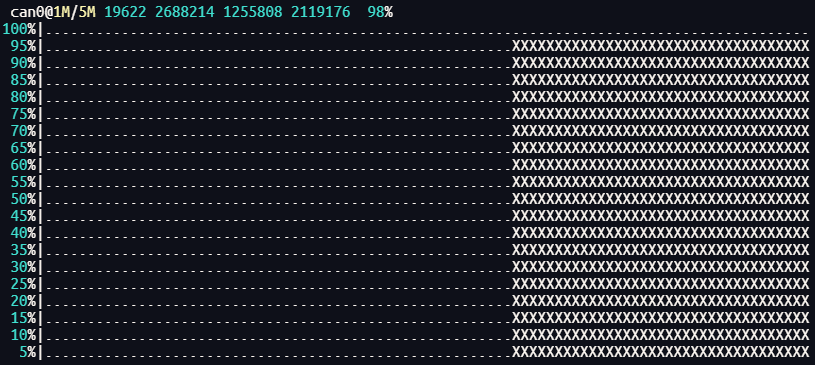
More help information:
canbusload -hCAN Frame Generation Tool: cangen
cangen is a powerful tool for generating and sending CAN frames, supports multiple frame types and generation modes.
# Set frame transmission interval (milliseconds)
cangen -g 100 can0        # Send one frame every 100ms

# Generate extended frame (29-bit ID)
cangen -e can0            # Random 29-bit ID
cangen -e -I 12345678 can0 # Fixed extended ID

# Generate CAN FD frame
cangen -f can0            # Basic CAN FD frame
# CAN FD with bit rate switching
cangen -f -b can0         # Enable bit rate switching (BRS)
# CAN FD with error state indicator
cangen -f -E can0         # Set error state (ESI)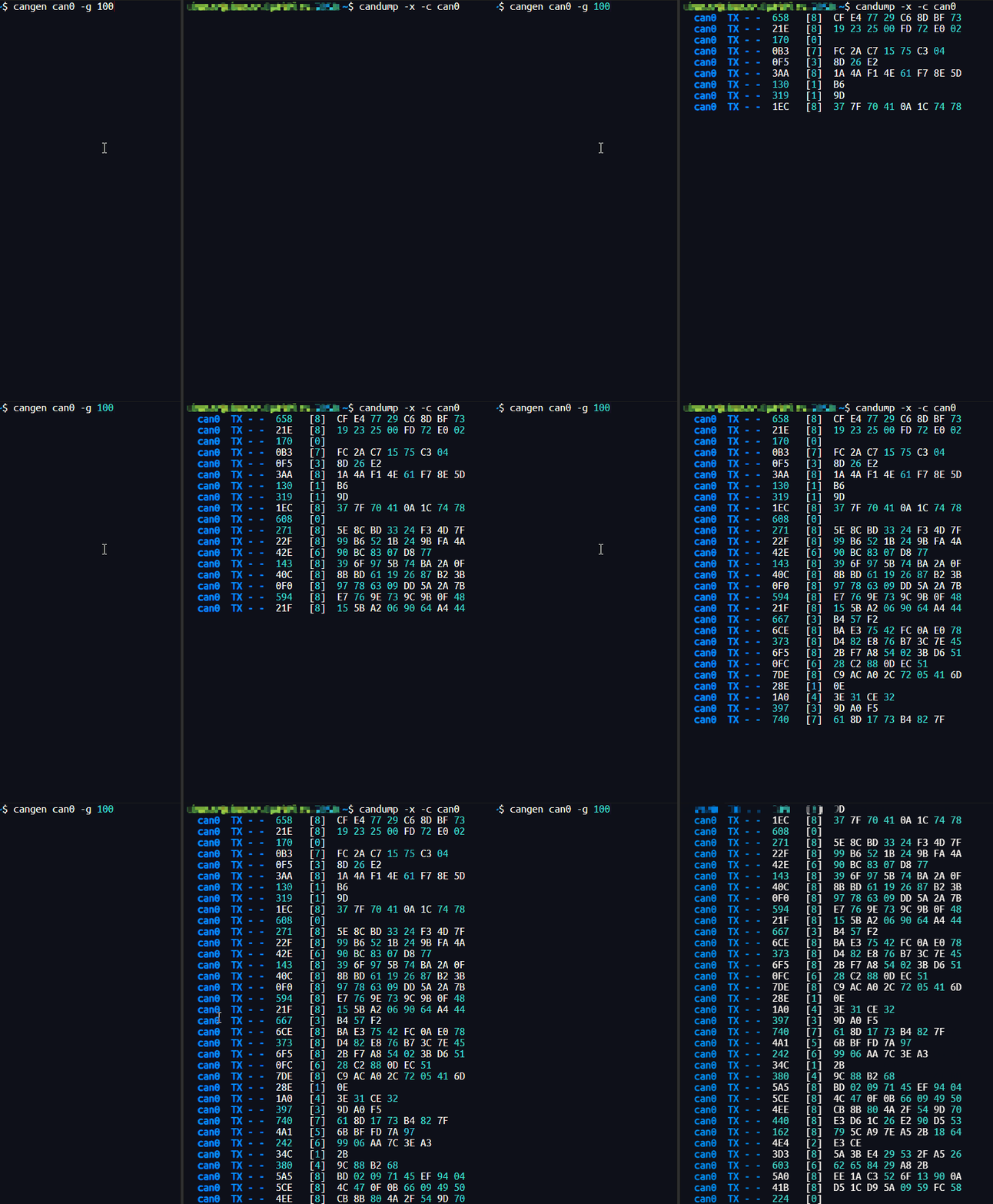
cangen tool has many practical settings. For more help information:
cangen -hTODO
cansniffer